
The Definitive Guide to Digital Video Formats: Containers, Codecs, and Compression Explained
The Definitive Guide to Digital Video Formats: Containers, Codecs, and Compression Explained
In today's world, where YouTube, TikTok, Netflix, and Zoom rule the digital scene, video has become one of the most influential and widely used forms of communication. We watch and make videos at a faster pace than ever before. However, behind every smooth video stream or viral clip is a complex system of digital data. A video file isn't just a moving image—it's a carefully built bundle of synchronized visuals, audio, subtitles, and extra information.
Trying to work with video formats can be really confusing. You might have a video that plays perfectly on your phone but won't open on your laptop. Or you might create a video that looks great but is too big to upload to social media. On the flip side, a video might upload quickly but look blurry or pixelated. Understanding the technology that makes this happen—specifically the difference between video formats, containers, and codecs—is what can help you avoid these problems.
This guide will help you understand the technical terms, explore the most commonly used video formats today, and give you the knowledge to make smart choices for your video projects.
The Core Concept: Containers vs. Codecs
The main thing to know is that people often mix up "format" with "codec." When someone says, "I have an MP4 file," they're only sharing part of the story. To truly grasp how videos work, you need to distinguish between the "box" and what's "inside the box."
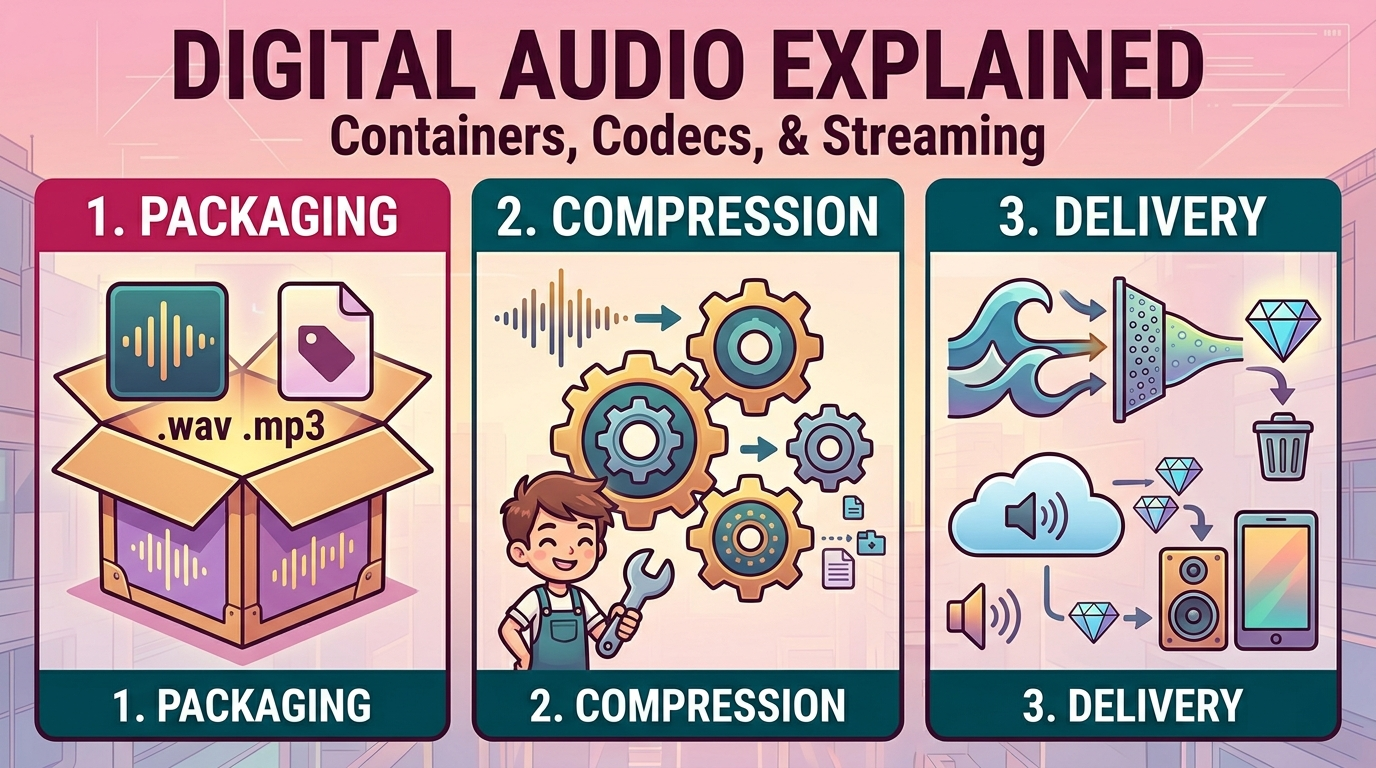
1.The Video Container (The Wrapper)
A video container format acts like a digital box or wrapper. Its main purpose is to hold all the parts of a video together in one file and make sure they play correctly at the same time.
A standard container usually includes:
- The video stream (the actual moving pictures).
- One or more audio streams (such as dialogue, background music, or different languages).
- Subtitles or closed captioning.
- Metadata (like chapter markers, title, director, and date).
The file extension at the end of the video file—like . mp4, .mov, .mkv, or .avi—tells you what container it uses. The container doesn’t determine the video quality; it just controls how the data is packed and organized.
2.The Video Codec (The Engine)
The word "codec" comes from "coder-decoder" or "compressor-decompressor." If the container is the box, the codec is the mathematical system used to pack the video and audio data into the box.
Uncompressed video takes up a lot of space. A minute of 4K video could take up dozens of gigabytes, which is too much to store or stream online. Codecs help by reducing the file size.
Codecs use smart methods to remove repeated or unnecessary information (lossy compression). For example, if you have a video of a news anchor in front of a static blue wall, the codec doesn’t need to store the blue wall in every frame (which happens 24 to 60 times a second). Instead, it saves the blue wall once and only records the changes in each frame, like the anchor's movement.
When you play the video, the software uses the same codec to decode the compressed file and recreate the images on your screen.
In short, you could have an MP4 container with video compressed using H.264 or one that uses H.265. The container's appearance stays the same, but the internal technology is quite different.

Deep Dive: The Essential Video Containers
Now that we've covered the wrapper, let's take a closer look at the most common video container formats you'll come across.
1.MP4 (MPEG-4 Part 14)
MP4 is the go-to container format for digital video. Developed by the Moving Picture Experts Group (MPEG), it was designed to work well on the internet and modern devices.
- The Pros: MP4 is widely compatible with almost every modern phone, tablet, computer, smart TV, and browser. It offers a good balance between quality and file size. It supports multiple audio tracks and text-based subtitles.
- The Cons: MP4 can be easily corrupted if the recording is interrupted (like a battery dying in the middle of shooting), which can make the file unreadable because the index data is usually written at the end of the file.
- Best Used For: Web streaming, uploading to YouTube or Vimeo, sharing via email, and general consumer use.
2.MOV (QuickTime Movie)
MOV was created by Apple in the 1990s as a native video format for QuickTime. It is a strong and professional video container.
- The Pros: MOV offers excellent quality and strong support for professional codecs like Apple ProRes. It is well-integrated with macOS and professional video editing tools such as Final Cut Pro and Adobe Premiere Pro.
- The Cons: While MOV is supported on Windows, it is primarily an Apple format. The file size can be much larger than MP4 depending on the codec used, making it less ideal for web distribution.
- Best Used For: Professional video editing, high-quality storage, and TV broadcasting.
3.MKV (Matroska)
Named after the Russian nesting dolls (Matryoshka), MKV is a popular, open-source, and very flexible multimedia container.
- The Pros: MKV's main strength is its ability to hold a huge number of video, audio, and subtitle tracks in one file. You could have a single MKV movie file with 10 different language dubs and 20 subtitle tracks. Plus, it’s tough on errors—if a file gets slightly damaged, you can still play the parts that are okay.
- The Cons: Not all devices or default video players support MKV naturally. Older versions of Windows Media Player or Apple QuickTime might not handle it, and you may need a third-party app like VLC to open it.
- Best Used For: Ripping DVDs and Blu-rays, storing personal media collections long-term, and sharing files with multiple language options.
4.AVI (Audio Video Interleave)
AVI was created by Microsoft in 1992 and is one of the oldest video containers still around. It was a big deal back then, but now it's mostly seen as a outdated format.
- The Pros: It works well with older Windows machines and legacy hardware.
- The Cons: AVI is an old system. It doesn’t support modern, high-compression codecs like H.264 or H.265. As a result, AVI files are usually much bigger than MP4 files of similar quality. It also has poor support for modern subtitle formats and detailed metadata.
- Best Used For: Using with very old hardware or for archiving footage from the 1990s and early 2000s.
5.WebM
Developed by Google, WebM is an open, royalty-free container made for the web. It works perfectly with the HTML5 <video> tag.
- The Pros: WebM is great for internet streaming. It uses Google’s VP8/VP9 and AV1 codecs, which offer high quality at low bitrates. This makes videos load quickly. It’s also royalty-free, so developers don’t need to pay for licensing.
- The Cons: It’s not widely supported outside of web browsers. You might have trouble playing a WebM file directly on a phone’s photo gallery or editing it in traditional video software without converting it first.
- Best Used For: Adding fast-loading video backgrounds to websites and for efficient internet streaming.
Deep Dive: The Critical Video Codecs
The container determines compatibility, while the codec controls quality, file size, and the processing power needed to play it.
1.H.264 / AVC (Advanced Video Coding)
For the past ten years, H.264 has been the backbone of digital video. It powers Blu-ray discs, YouTube, Zoom calls, and nearly every smartphone camera.
- Why it matters: It offers a great balance between high quality and efficient compression. Since it’s been the standard for so long, almost all modern computer chips (CPUs and GPUs) have built-in hardware to decode H.264, making playback smooth on any device.
2.H.265 / HEVC (High Efficiency Video Coding)
HEVC is the direct next step after H.264, created to handle the bandwidth issues brought by 4K and 8K video.
- Why it matters: HEVC is much smarter than its predecessor. It can make a video file up to 50% smaller than an H.264 file without losing quality. This makes it essential for streaming 4K HDR content on Netflix or saving storage space when shooting 4K on your iPhone.
- The catch: HEVC requires much more computing power to encode and decode, and its complex, expensive patent licensing has made it hard for tech companies to widely adopt it on the web.
3.AV1 (AOMedia Video 1)
AV1 is the tech industry’s response to the costly licensing fees of H.265. Created by the Alliance for Open Media (a powerful group including Google, Amazon, Netflix, Apple, and Microsoft), AV1 is completely open-source and free to use.
- Why it matters: AV1 represents the future of web video. It’s even more efficient than H.265, offering better quality at extremely low bitrates.
- The catch: AV1 is very complex, so encoding it requires a lot of processing power. While major platforms like YouTube and Netflix are starting to stream in AV1 to compatible devices, it will take a few more years before all consumer hardware has chips to smoothly encode and decode it.
4.Apple ProRes
Unlike the highly compressed codecs above (which are "delivery codecs" for final viewing), ProRes is an "intermediate codec" made for post-production and editing.
- Why it matters: ProRes uses light, intra-frame compression (compressing each frame individually instead of comparing it with nearby frames). This makes files large, but it requires almost no computing power for editing programs like Premiere Pro to move through the timeline. It keeps a lot of color detail and dynamic range, so no quality is lost while a filmmaker colors and edits the footage.
The Triad of Quality: Bitrate, Resolution, and Frame Rate
Although the format and codec you choose are important, the actual quality of your final video depends on three main settings during the encoding process.
- Resolution refers to the size of the video in pixels, like 1920x1080 for HD or 3840x2160 for 4K. The higher the resolution, the clearer the image, but it also needs a lot more data to work with.
- Frame rate is the number of still images shown each second to make motion look smooth. Movies typically use 24fps, while live TV and sports often use 30fps or 60fps. A higher frame rate makes motion appear smoother, but it also makes the file bigger.
- Bitrate is the most important factor when it comes to video quality. It’s the amount of data used per second of video, usually measured in Mbps. Even if you have a 4K video, if you use a low bitrate, it might look pixelated or blocky. That’s because the codec doesn’t have enough data to properly draw all those 4K pixels.

Making the Right Choice: Real-World Examples
How can you apply this knowledge to make smart decisions? Let’s look at some common situations.
- Scenario A: Sharing a vlog on YouTube, Instagram, or TikTok. The best option is the MP4 container with the H.264 codec. This format is widely supported by all social media platforms, offering good quality without making the file too large, which helps with fast uploads.
- Scenario B: Editing a short film in Premiere Pro. The best choice is the MOV container with the Apple ProRes codec. This setup ensures you get the best color quality and smooth playback when you move through your timeline. You may end up with very large files, but it’s worth it for the performance and quality during editing.
- Scenario C: Adding an auto-playing video banner to a website. You should go with the WebM container and either VP9 or AV1 codec. These are great for fast loading times, which is important for website speed and user experience. WebM offers high quality with small file sizes, making it perfect for silent, automatic playback.
- Scenario D: Ripping a DVD or Blu-ray collection to a digital home server. The ideal format is MKV container with the H.265 (HEVC) codec. This lets you include all the director’s commentary and subtitles in one file. H.265 also compresses the files very efficiently, helping you save space on your home server without losing video quality.
Conclusion
The world of digital video formats involves a careful balance between picture quality, file size, and compatibility with your hardware. Older formats are being replaced by newer, more efficient ones like AV1, which are designed for the high data needs of 8K and HDR content. By understanding the difference between containers and codecs, you can choose the right settings for each purpose. This means you’re not just guessing when you export your video—it lets you create the best possible file for your specific need, whether it’s a feature film or a short social media clip.
By understanding the distinct roles of the container (the box) and the codec (the compression engine), you are no longer at the mercy of confusing export menus. You can strategically tailor your video files to their specific destination, ensuring that whether you are delivering a Hollywood feature or a ten-second social media clip, your content always looks its absolute best.