The Ultimate Guide to Digital Image Formats: Navigating Quality, Speed, and Compatibility
The Ultimate Guide to Digital Image Formats: Navigating Quality, Speed, and Compatibility
In today's digital world, images are deeply embedded in our communication. They appear on every webpage, social media feed, and professional presentation. However, to someone who isn't familiar with the technical side, an image is simply an image. The reality behind that image—whether it's a photo of a sunset, a corporate logo, or an animated meme—is a complex structure of digital data stored in a particular file format.
Choosing the right image format is not just a technical decision; it's crucial. It affects visual quality, website loading speed, server storage costs, and cross-platform compatibility. Using the wrong format can result in logos looking blurry, photographs appearing blocky, or websites that take an extremely long time to load, which frustrates users and negatively impacts search engine rankings. This article delves into the world of digital image formats, breaking down the jargon to help you make informed choices, whether you're a web developer, graphic designer, or casual digital user.

The Foundational Divide: Raster vs. Vector
Before exploring specific formats, it's essential to understand the fundamental difference between digital graphics: raster images and vector images. Every format you use will fall into one of these two categories, and grasping how they render images is key to mastering digital visuals.
Raster Images: The Power of Pixels
Most images we see on screens are raster graphics. Raster images are made up of a fixed, rectangular grid of tiny squares called pixels. Each pixel contains specific color and brightness data. When viewed at their intended size, the millions of colored pixels blend together seamlessly to form a coherent image. However, because the number of pixels is fixed at the time of creation or capture, raster images don't scale well. If you try to zoom in or enlarge a raster image significantly, the software must guess how to fill in the missing areas, stretching the individual squares. This results in "pixelation"—the individual blocks become highly visible, creating jagged, stair-stepped edges and a blurry look.
Common uses for raster graphics include digital photography, detailed digital art, and any imagery with complex color gradients and subtle textures. Most formats discussed in this guide (JPEG, PNG, GIF, WebP, AVIF, TIFF) are raster-based. When working with raster images, always be mindful of resolution, typically measured in PPI (Pixels Per Inch), to ensure the image looks sharp on its intended display.
Vector Images: The Elegance of Mathematics
In contrast to the pixel grid, vector images are independent of resolution. They are not made of pixels but are composed of mathematical descriptions of shapes—lines, curves, polygons, and points—on a coordinate system. A vector file essentially contains a set of instructions that tell the rendering software (like a web browser or design tool) exactly how to draw the image using math. Because they are purely mathematical, vector images have a unique advantage: they are infinitely scalable. You can design a vector logo on a 13-inch laptop and scale it up to the size of a highway billboard without any loss of quality or increase in file size.
Vectors are the standard for typography, brand logos, UI icons, and flat graphics that need to maintain sharpness across different sizes. The main vector format used online is SVG.
The Battle of Compression: Lossy vs. Lossless
Another key concept to understand is image compression. Since raw image data can be very large, most formats use compression to make the files smaller. This compression can be classified into two main types: lossy and lossless.
Lossless Compression
Lossless compression reduces file size without losing any image data. When you decompress the image (or view it), it will be an exact copy of the original, pixel by pixel. This type is perfect for images that need to stay completely accurate, such as those with a lot of text, technical drawings, or images that will be edited again. The downside is that lossless files are usually bigger than lossy ones.
Lossy Compression
Lossy compression creates much smaller file sizes by permanently removing some data that the human eye is unlikely to notice. It looks for areas of similar colors and simplifies them. If you compress too much, you might see artifacts—like blurry blocks, color banding, or jagged edges around sharp lines. Lossy compression is great for photographs where complex textures help hide the missing data. However, every time you edit and save a lossy file, its quality can decrease over time, a problem called generational degradation.
The Traditional Raster Formats (The "Big Three")
For many years, three formats have been the most common in digital media. Though they are being faced with newer formats, they remain important.
1.JPEG / JPG (Joint Photographic Experts Group)
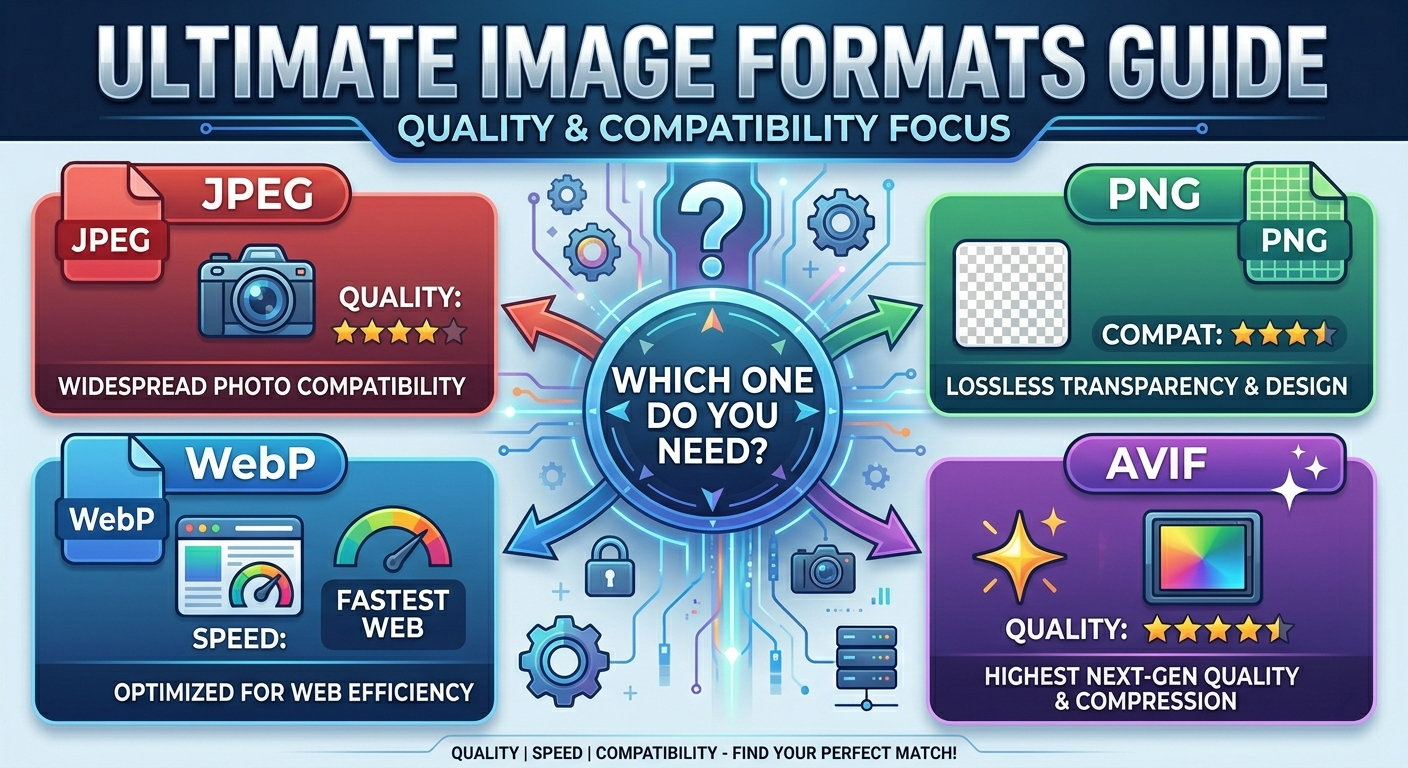
JPEG is the go-to format for digital photos. It is a lossy format designed for compressing complex images with a wide range of colors, such as photographs of landscapes or people.
- How it Works: JPEG looks at the image and simplifies the color data, removing parts that are hard to notice. It provides a range of compression settings that balance quality and file size.
- Best Used For: Storing and sharing digital photos; images on websites where some quality loss is acceptable for faster load times.
- Strengths: Good support from most devices; very small file sizes for photos.
- Weaknesses: Doesn't support transparency; not ideal for images with sharp edges like logos or text, which can become blurry; lossy compression can cause artifacts.
2.PNG (Portable Network Graphics)
PNG was created as an open-source alternative to GIF, offering strong lossless compression and better support for transparency.
- How it Works: PNG uses lossless compression, making it excellent for graphics that need pixel accuracy. A key feature is the alpha channel, which allows for true transparency with varying opacity. This means a PNG logo can blend smoothly over any background.
- Best Used For: Website logos, icons, and graphics that require transparency; screenshots with clear text; images during editing before final export.
- Strengths: Lossless quality; excellent transparency features; sharp edges.
- Weaknesses: Larger file sizes compared to JPEG for photos; not suitable for print because it doesn't support CMYK color space.
3.GIF (Graphics Interchange Format)
GIF is an old but well-known web format introduced in 1987. It is mainly used for simple animations and has a limited color palette.
- How it Works: GIF uses a lossless method but is limited to 256 colors. It supports binary transparency, meaning a pixel can be fully opaque or fully transparent, which can lead to jagged edges on curved shapes. Unlike other formats, GIF can include multiple frames in one file, allowing for looped animations.
- Best Used For: Short, low-resolution animated memes or reaction graphics.
- Strengths: Broad support from browsers; ability to create simple animations.
- Weaknesses: Color limitations make it poor for photos; inefficient for complex animations, leading to large file sizes; outdated transparency features.
4.SVG (Scalable Vector Graphics)
SVG is different from the raster formats. It's an open XML standard, meaning the SVG file contains code that a browser can read and display.
- How it Works: An SVG file defines the mathematical instructions to draw shapes. Since it’s code, it can be manipulated by CSS and JavaScript, enabling interactive or dynamic graphics. SVGs are usually very small for simple shapes.
- Best Used For: Website logos, icons (like UI elements), diagrams, and any flat graphic that needs to look good on all screen sizes, from mobile to 5K monitors.
- Strengths: Infinite scalability without quality loss; small file sizes for basic graphics; editable via code; accessible (search engines can read text inside SVGs).
- Weaknesses: Not suitable for complex textures or realistic photos (which would require lots of math, making the file very large).
5.WebP
WebP is a format developed by Google for the web. It aims to be a single solution combining the best features of JPEG and PNG.
- How it Works: WebP supports both lossy and lossless compression, transparency, and animation. Its compression algorithms are more advanced than older formats, typically reducing file sizes by 25–35% compared to equivalent JPEGs or PNGs at the same visual quality.
- Best Used For: Replacing JPEGs and PNGs on modern websites to speed up page load times and reduce bandwidth use.
- Strengths: Better compression efficiency; supports both lossy and lossless options, transparency, and animation; widely supported by modern browsers (Chrome, Firefox, Safari, Edge).
- Weaknesses: Slightly slower encoding time compared to JPEGs; not supported by very old browsers.
6.AVIF (AV1 Image File Format)
AVIF is the latest big-format option, created by the Alliance for Open Media, which includes companies like Google, Netflix, and Amazon. It uses the efficient AV1 video codec to compress still images.
- How it Works: AVIF is the top choice for lossy compression. It can create images that are much smaller than WebP while keeping the same quality, and even at high compression levels, it keeps the image looking clean with very few imperfections. It also supports high dynamic range (HDR) and wide color ranges.
- Best Used For: Websites that need fast performance and small file sizes, such as streaming services or online stores with lots of images; future projects that need accurate color representation.
- Strengths: Best lossy compression available; supports HDR.
- Weaknesses: Takes a lot of computing power to compress; browser support is improving but not everywhere yet, although it's supported by most modern browsers.
7.TIFF (Tagged Image File Format)
TIFF is the go-to format for print and archiving. It focuses on keeping data as accurate as possible.
- How it Works: TIFF often uses lossless compression, but it can also store images without any compression. It supports features like image layers and CMYK color spaces (important for physical printing), and it can hold a lot of additional information.
- Best Used For: Archiving high-quality photo originals; print production; high-resolution scans; digital storage.
- Strengths: Preserves maximum quality; supports professional printing standards; reliable for long-term storage.
- Weaknesses: Very large file sizes; not supported by web browsers.
8.RAW
RAW is not one format but a group of proprietary formats used by digital cameras to store unprocessed sensor data. Examples include CR3 for Canon and NEF for Nikon.
- How it Works: A RAW file is like a digital negative. It hasn’t been processed into a viewable image like a JPEG. It includes all the color and exposure data captured by the sensor, allowing for a lot of flexibility during editing.
- Best Used For: Professional photographers who want complete control over adjusting white balance, exposure, and color in post-processing.
- Strengths: Maximum editing flexibility.
- Weaknesses: Proprietary (needs specific software to open); very large file sizes; not suitable for the web without conversion to another format.
Making the Right Choice: Practical Scenarios
Navigating this ecosystem can feel overwhelming, but the right choice almost always comes down to examining the content of the image and knowing where it will end up. Here is a breakdown of how to choose the right format for common scenarios:
- Scenario 1: Uploading standard photographs to a blog or website.
Your main goal here is to keep loading times fast without losing too much quality. WebP is the best modern option, offering great compression. If you're worried about older browsers not supporting it, JPEG is still a safe and widely supported alternative.
- Scenario 2: Uploading a company logo to a website header.
Logos need to look clear and sharp, especially when placed over colored backgrounds without a white border. If the logo is made up of shapes and text, SVG is the best choice because it scales perfectly without losing quality. If the logo has complex shadows or detailed elements, PNG is the right format for its true transparency.
- Scenario 3: Designing responsive user interface (UI) icons.
Icons must look sharp and clear, whether viewed on a small mobile screen or a large desktop monitor. Because they are usually simple geometric shapes, SVG is the only correct choice.
- Scenario 4: Maximizing performance for an image-heavy e-commerce platform.
If you have thousands of product photos and bandwidth costs are a big concern, AVIF offers the most aggressive compression available today. This keeps web pages light and fast-loading.
- Scenario 5: Creating a short, looping reaction animation for social media.
Even though it's old and has some limitations, GIF is still the easiest and most widely recognized format for simple, repeating animations that don’t need high-definition color.
- Scenario 6: Preparing a detailed layout for a physical magazine print run.
Commercial printers need perfect quality and accurate ink colors. TIFF is the standard format, ensuring no compression issues and full support for the CMYK printing profile.
- Scenario 7: Shooting a high-contrast landscape photo you plan to edit later.
Always set your camera to shoot in RAW. This lets you capture the most sensor data, giving you the flexibility to recover details from dark shadows and bright skies during editing. Once you're done, you can export to JPEG for the web.
By understanding the strengths and weaknesses of these formats, you move from just guessing how to save an image to managing your visual assets strategically.
This knowledge helps you improve user experiences, reduce server load, and make sure your visual message is clear and efficient across every medium.